Oops! Something went wrong while submitting the form.


GTA 6 saves from the pause menu into 15 manual slots, plus one autosave slot. Here is how to save, and why Save Game is greyed out during missions, the prologue and after cheats.
GTA 6 has 15 manual save slots plus one separate autosave slot. You save from the pause menu, anywhere in free roam, so you don't need a bed or a safehouse.
The autosave writes after missions end, but it doesn't use one of your 15 slots. There is also no mission replay, so a manual save from before a mission is the only way to play it again.
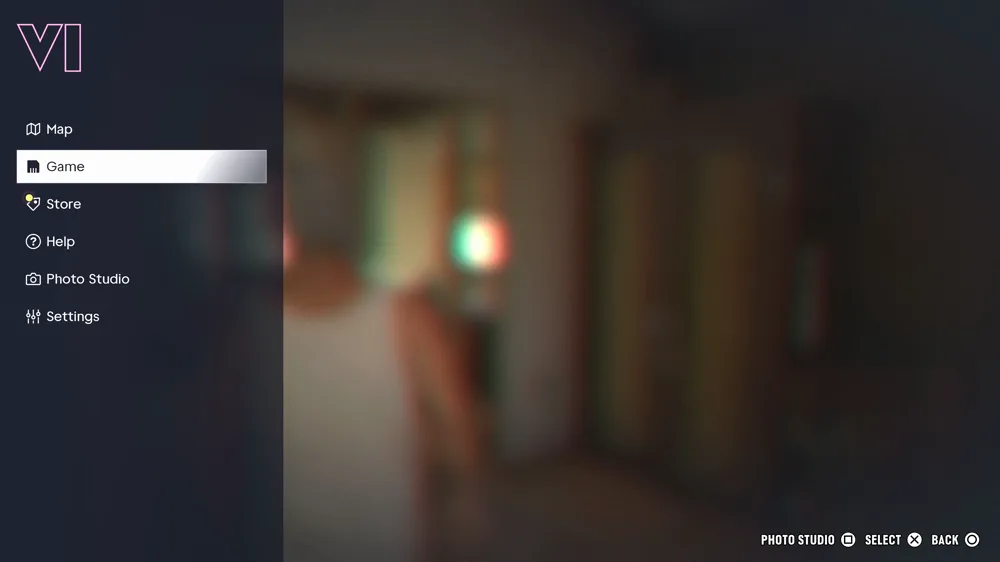
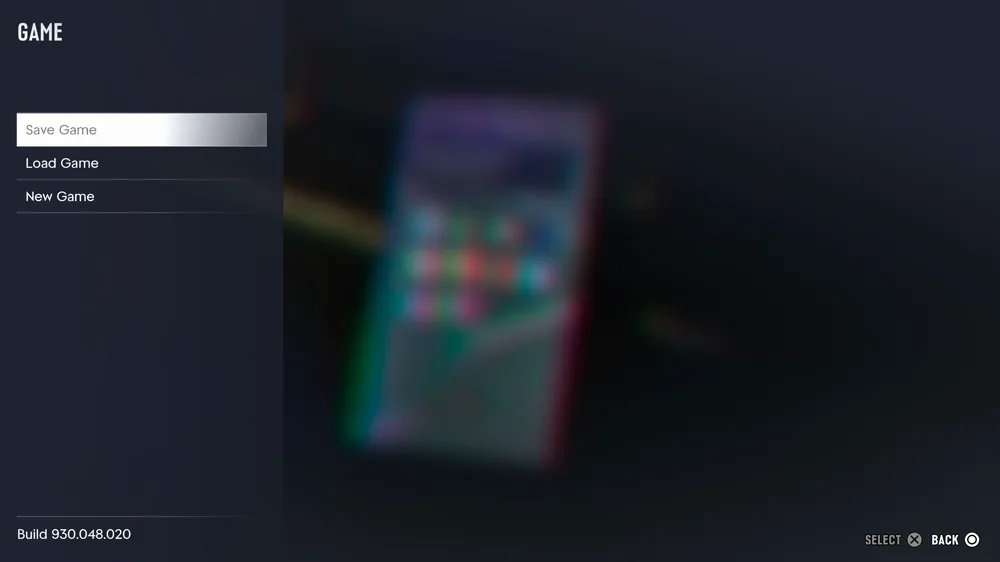
The Game menu has three options: Save Game, Load Game and New Game. Saving is not in Settings.
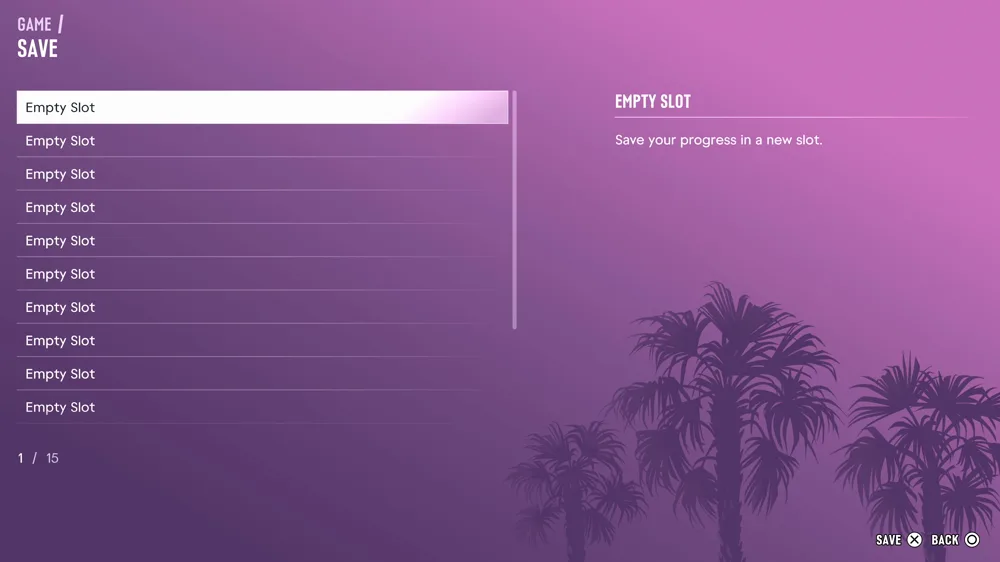
Each save shows the last mission you finished, your completion percentage, the date and time, and a short story summary. That makes it easy to find the right save later.
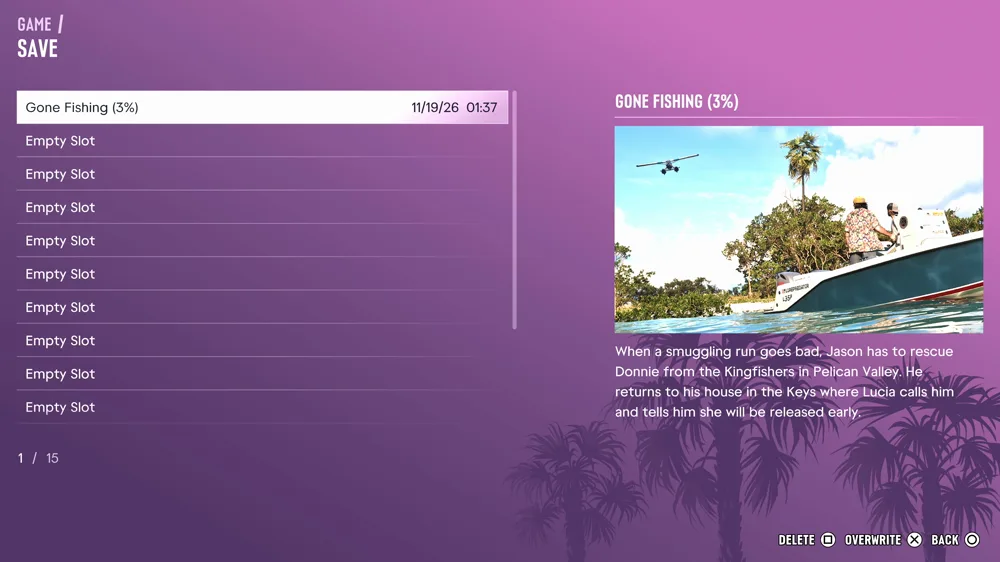
Highlight a used slot to get two options: "Overwrite" (X on PS5, A on Xbox) and "Delete" (Square on PS5, X on Xbox). Once all 15 slots are full, you have to overwrite one.
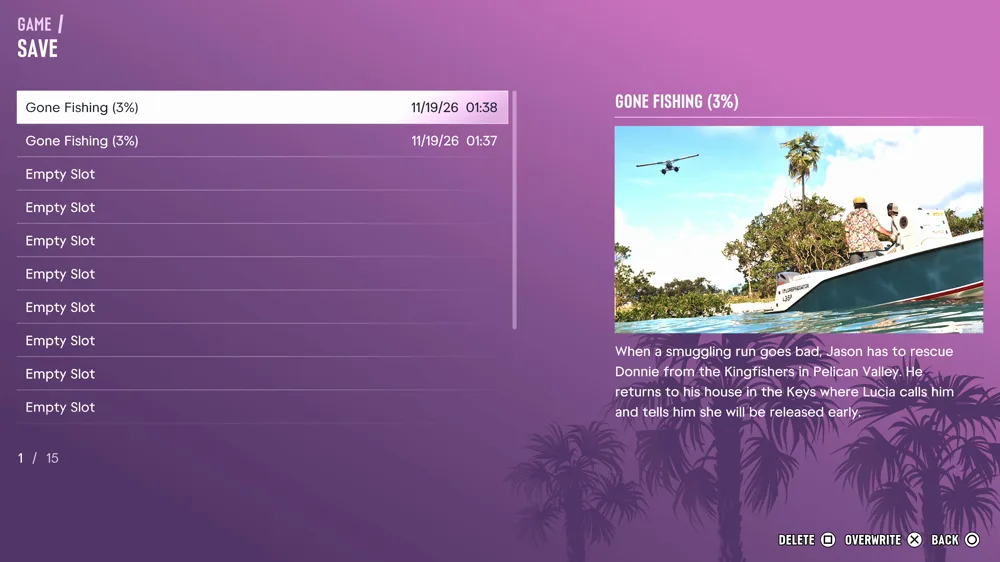
Open the pause menu, select "Game" and then "Load Game". The autosave is listed with "(Autosave)" in front of its name.
Note: Loading an older manual save replaces your autosave with that point in the game, so make a fresh manual save first if you want to keep your current progress.
If "Save Game" is greyed out, one of these is the reason:
As of launch, there also doesn't seem to be a setting that switches the autosave off.
Because missions can't be replayed, keep a few slots for big moments. A save at the start of each of the five chapters is a good habit.
Make one more before the mission "Tourist Trap" at the end of Chapter 1. After it, you lose your cash on hand, your bank checking balance, the money in Jason's floorboard stash, his house and your vehicles. Only Family Savings carries over, so move money there first. Our GTA 6 bank account and stash guide explains how.
On PS5, your saves back up to cloud storage if you have PlayStation Plus. On Xbox Series X|S they sync to the cloud automatically. That is worth turning on in case a save file ever gets corrupted.

GTA 6 has 61 cheats that unlock after you finish the story, entered on the phone with the D-pad. Here is every cheat, its unlock challenge and the 20 inputs found so far.
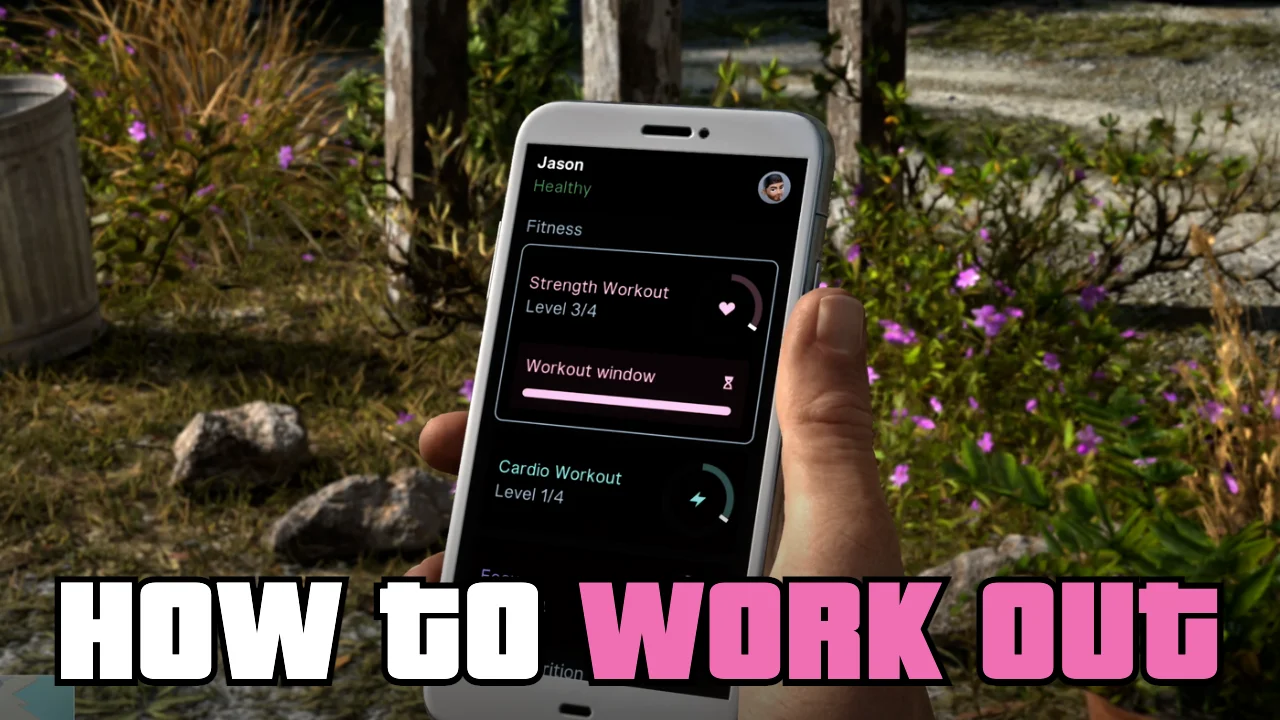
Working out in GTA 6 raises Strength and Cardio, which set your max health and stamina. Here is where to train, how a workout and the workout window work, and how weight changes.