Oops! Something went wrong while submitting the form.


Install Megabonk mods with Thunderstore Mod Manager and BepInEx, after turning off leaderboard uploads so modded runs never reach the weekly board. Covers profiles, keybind configs, the game folder error, manual installs and the mods from our video.
Megabonk mods run on BepInEx, and the easiest way to install them is a free mod manager that uses Thunderstore, where almost all Megabonk mods are uploaded. Mods can add a bigger minimap, chest and shrine trackers, a first person camera, an item spawner for testing builds or even new characters.
Megabonk has weekly leaderboards that reset every Sunday, and the developer has already wiped them more than once because of cheated scores. A score set with an item spawner or a stat mod does not belong there, so turn off score uploads before you play with mods.
Note: Megabonk mods are PC only (Steam). They are made by the community, and many of the popular ones were last updated in late 2025, so a mod can stop working after a game update until its author fixes it.
Do this in the unmodded game before installing anything:
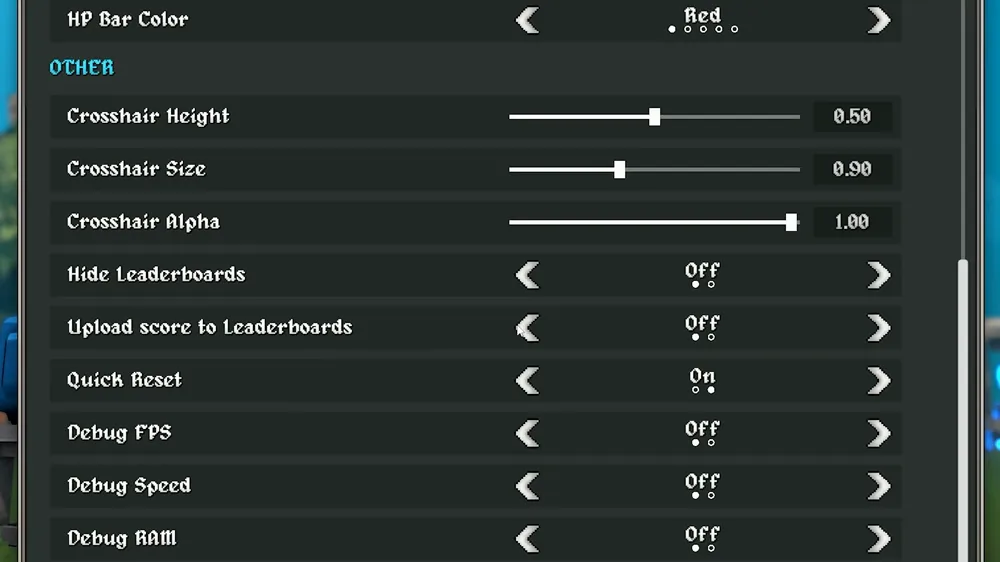
With uploads off, your modded runs stay on your own PC. You can also set "Hide Leaderboards" to "On" if you do not want to see the board on the main menu at all.
Note: Some mods, such as the community leaderboard patch and several mod menus, block score uploads by themselves whenever they detect cheat features or other mods. Do not rely on that, as most small mods have no such check.
Thunderstore Mod Manager installs BepInEx and every mod you pick into a separate profile, so your normal game files stay untouched. It runs on Overwolf and shows small ads. If you would rather avoid Overwolf, r2modman and Gale are free standalone managers that use the same mods and work almost the same way.
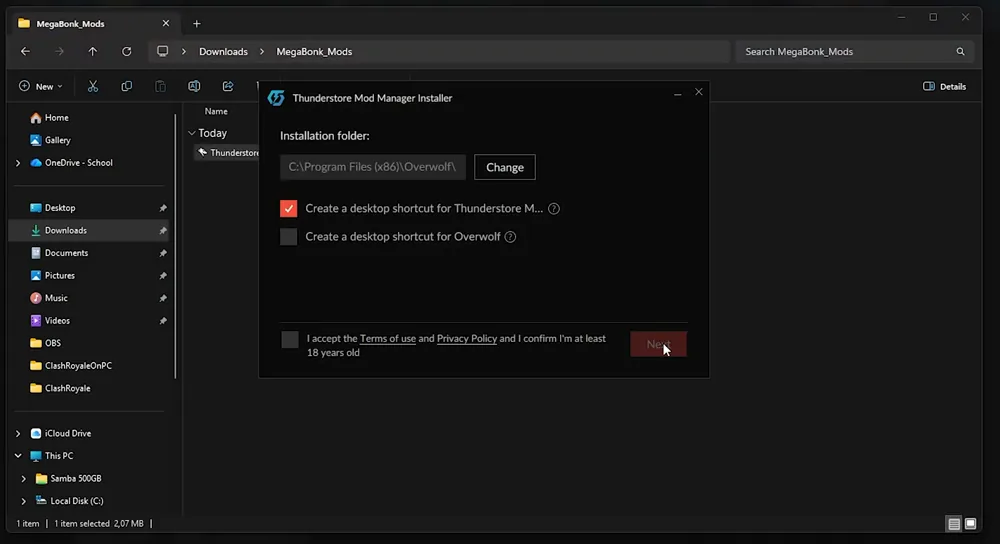
On the Overwolf page, click "Download On Overwolf" and run the installer. Tick the box to accept the terms, click "Next" and wait for Overwolf and the manager to install. It opens by itself when it is done.
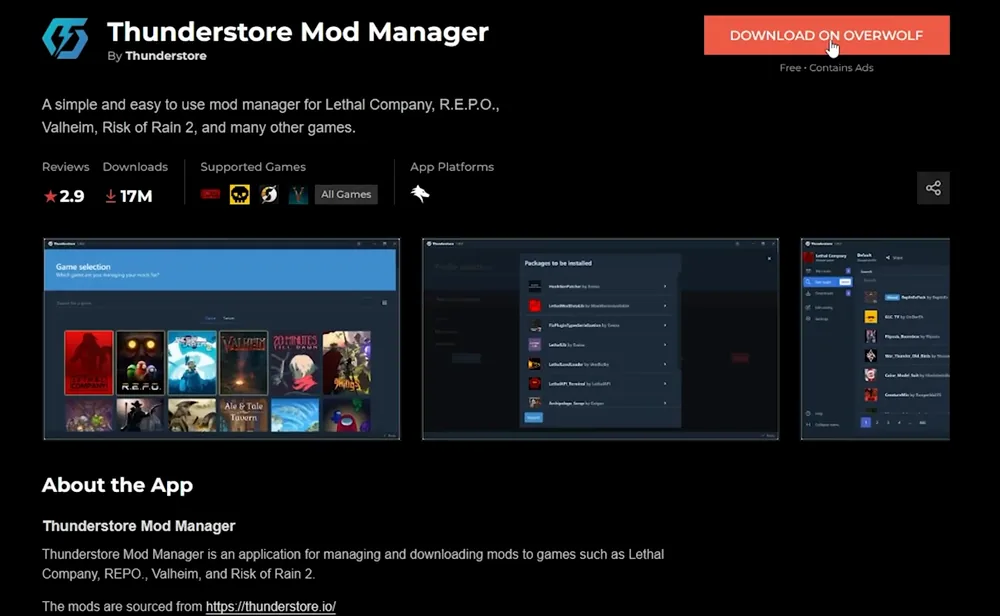
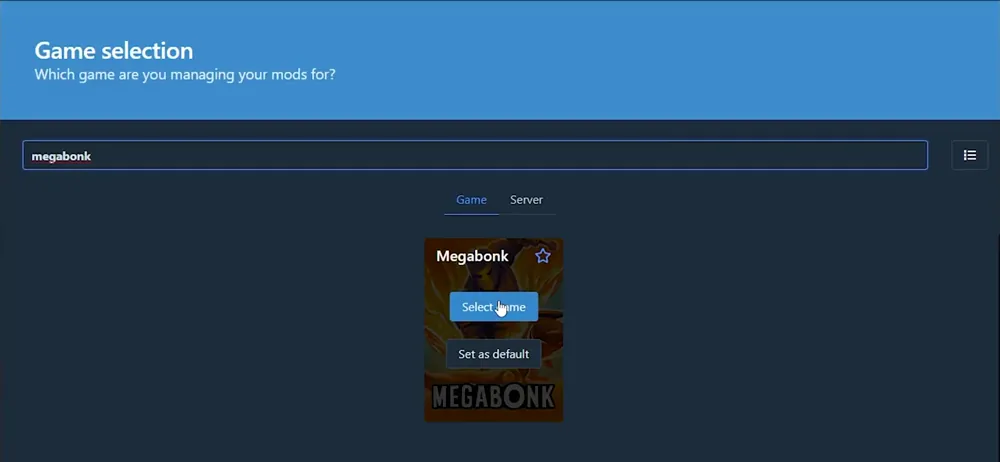
On the "Game selection" screen, type Megabonk in the search bar, hover over the game and click "Select game". You can also click "Set as default" so the manager always opens on Megabonk.
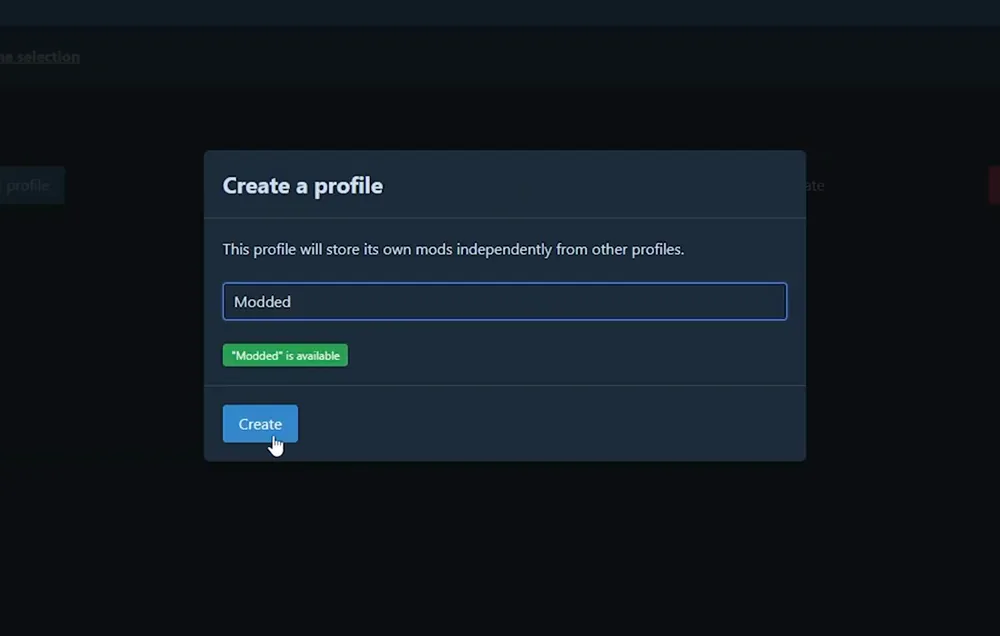
Next, click "Create new" on the profile screen, name the profile (for example "Modded") and click "Create". Every profile keeps its own list of mods, so you can have one for quality of life mods and another for cheats.
Open the "Get mods" tab. BepInExPack_IL2CPP by BepInEx is pinned at the top of the list, and it is required for almost every Megabonk mod. Click it, then click "Download", keep the latest version selected and click "Download with dependencies".
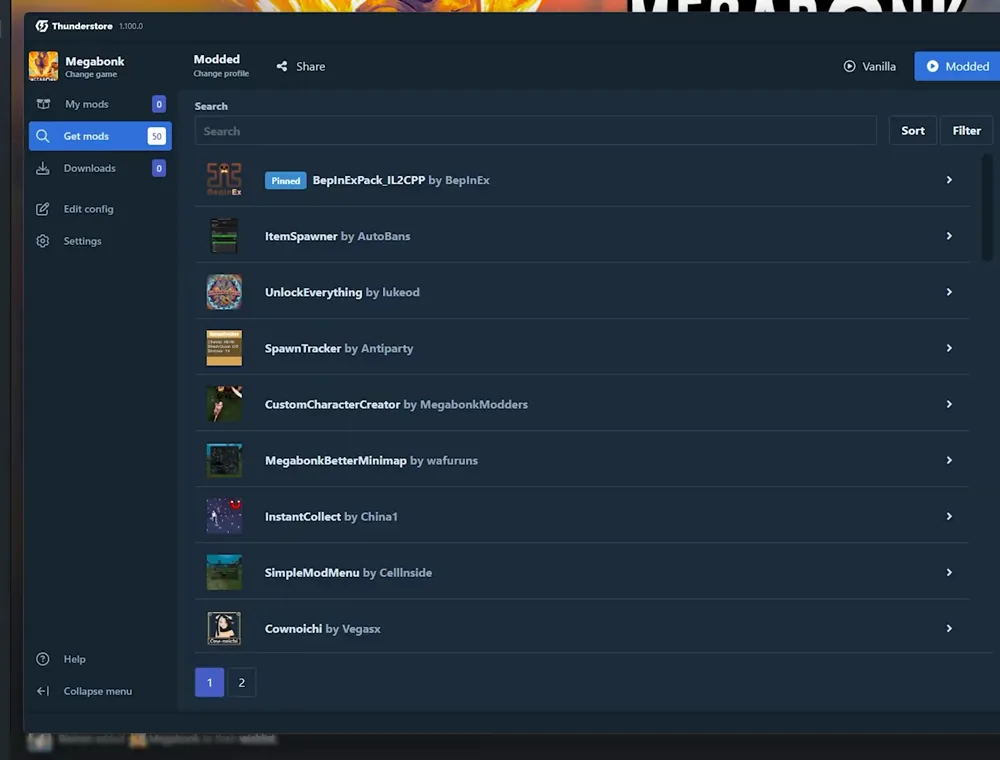
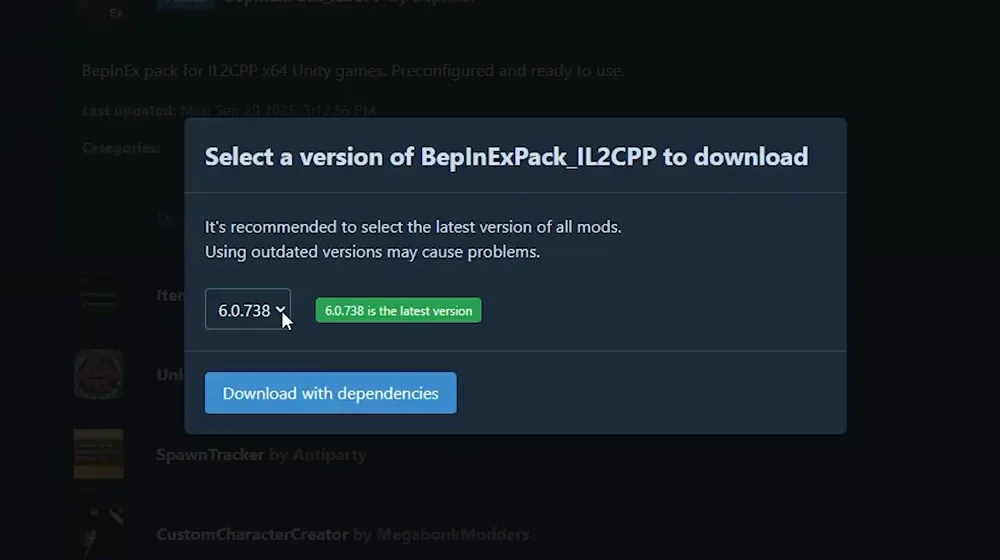
To find popular mods, click "Sort" and pick "Download count". Install each mod the same way: click it, "Download", then "Download with dependencies". The manager adds the right BepInEx version and any library a mod needs by itself.
Note: Some Megabonk mods also come in a MelonLoader version (often with "MelonLoader" in the name). Do not mix MelonLoader and BepInEx mods in one profile. Stick to the BepInEx versions, which are the large majority on Thunderstore.
Installed mods are listed under "My mods". Use the toggle next to a mod to disable it without removing it, or click the arrow next to it and pick "Uninstall" to delete it.
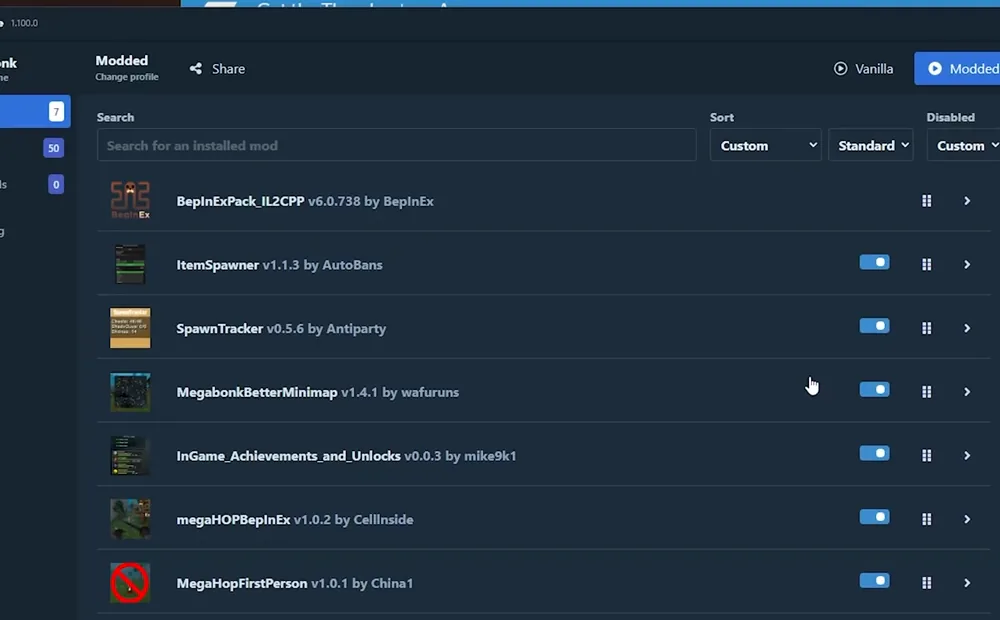
Click "Modded" in the top right corner to start the game with your mods. The first modded launch takes noticeably longer than normal while BepInEx prepares its files, so give it a minute. "Vanilla" next to it starts the normal game without mods.
Note: Starting Megabonk from Steam always runs the unmodded game. Use the "Modded" button every time you want to play with mods.
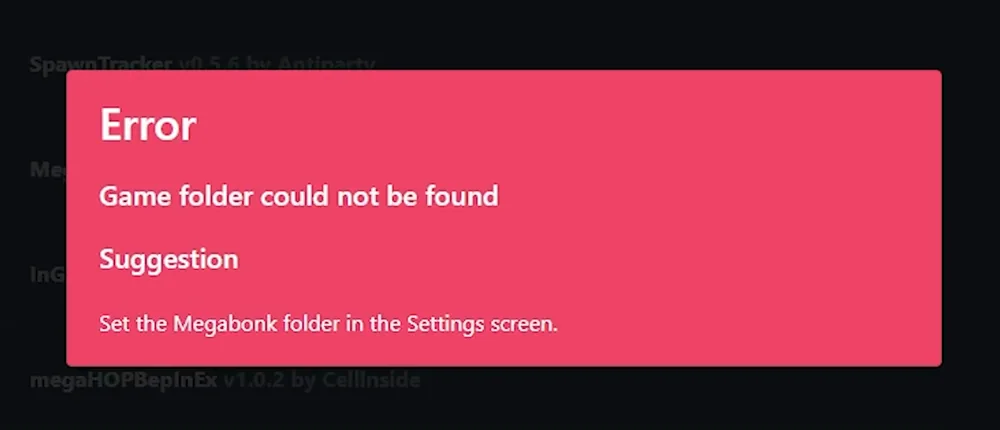
If the manager cannot find your Megabonk install (common when the game is on a second drive), you get the error "Game folder could not be found" after clicking "Modded".
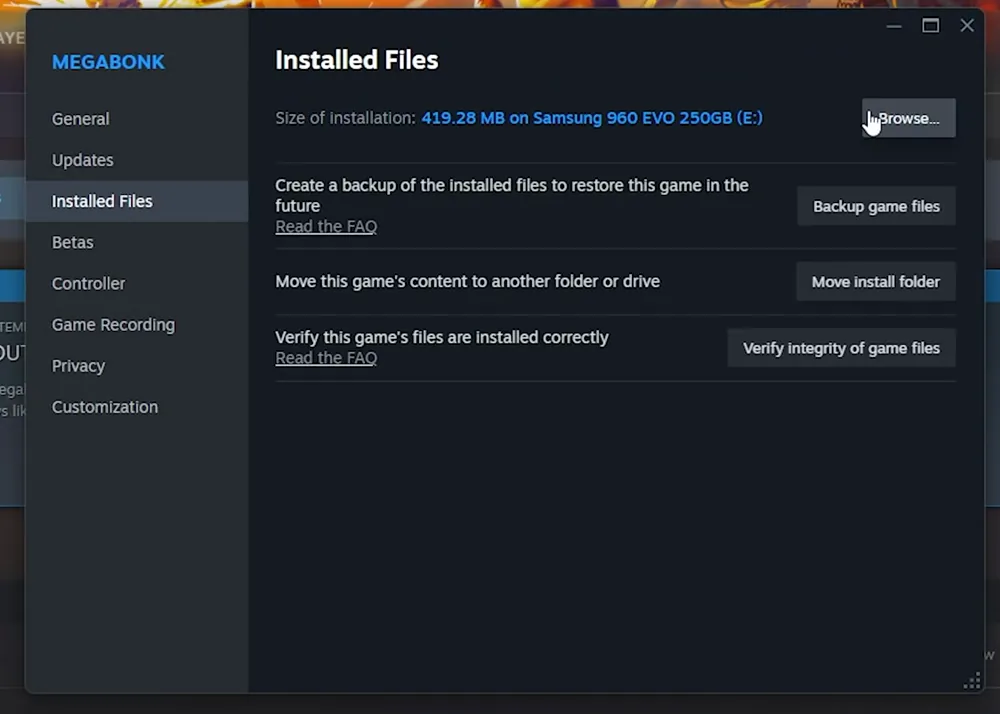
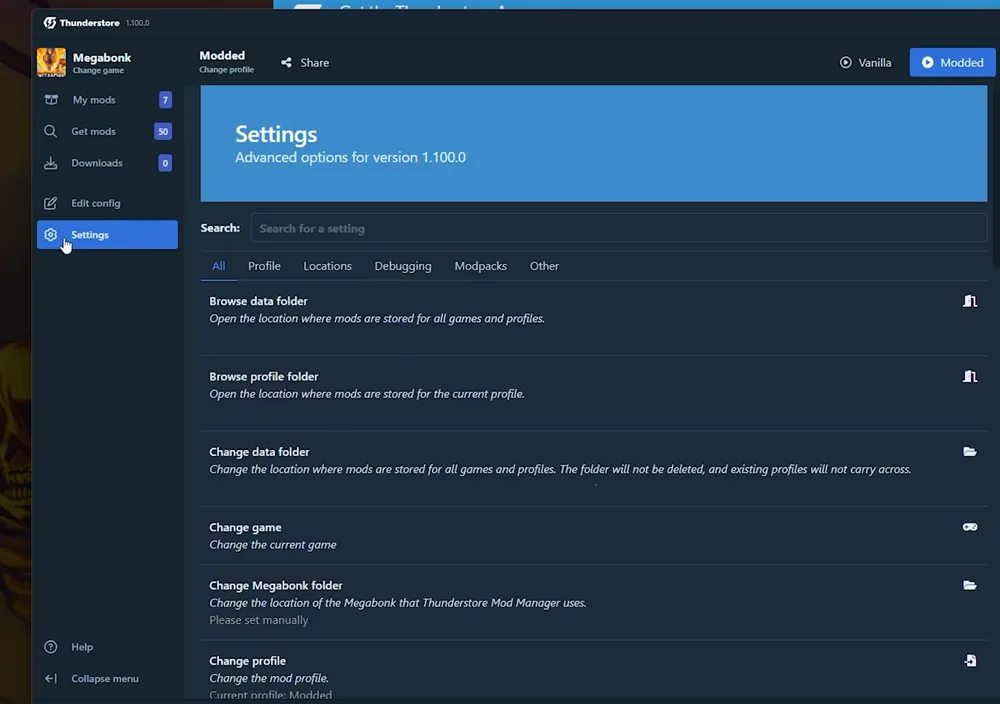
Click "Modded" again and the game should start with your mods.
Most Megabonk mods have a config file for keybinds and settings. These files only appear after you have started the game once with the mod installed, so launch modded Megabonk first.
Then open "Edit config" in the mod manager, click the mod's file (they are named after the author and the mod, such as "AutoBans_MegabonkItemSpawner.cfg") and click "Edit config". Change the value you want and click "Save".
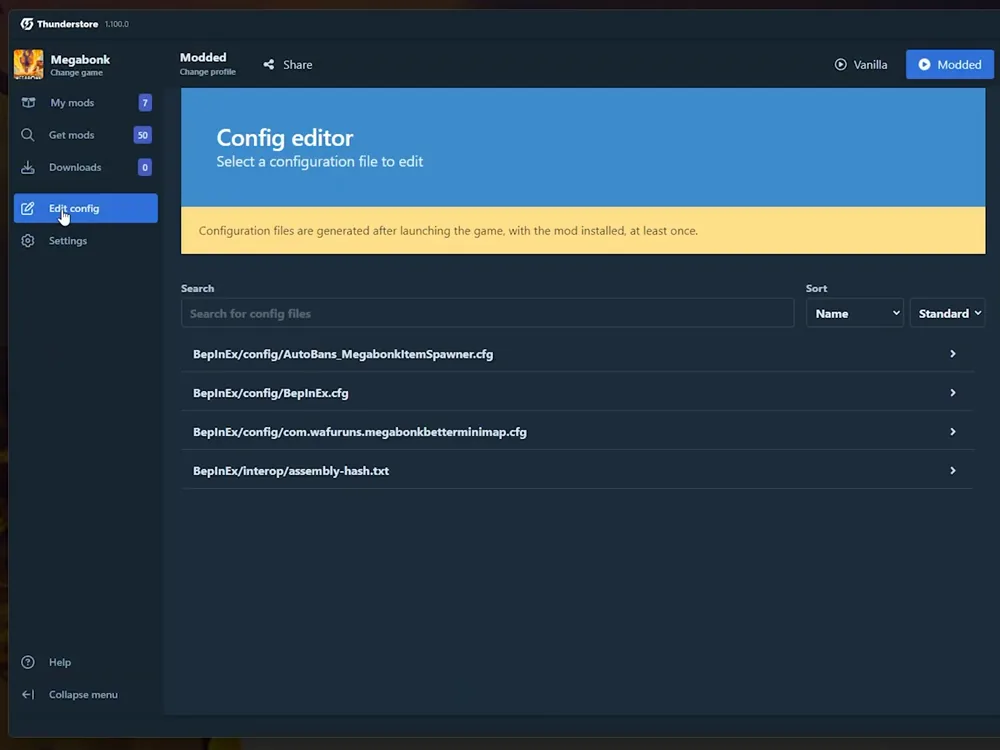
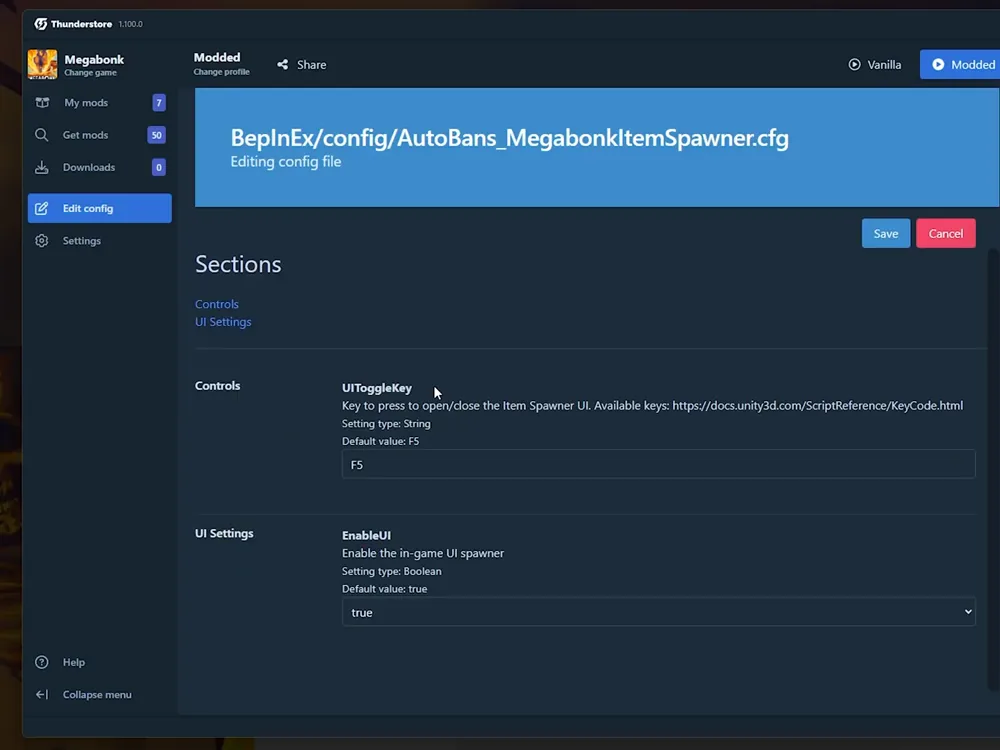
For example, the Item Spawner opens with F5 by default. If that clashes with another key you use, change "UIToggleKey" here.
These are the mods shown in our video. Check each mod's Thunderstore page for its last update before installing:
| Mod | Author | What It Does | Last Update |
|---|---|---|---|
| BepInExPack_IL2CPP | BepInEx | Mod loader, required by almost every mod | 6.0.788 (October 2026) |
| ItemSpawner | AutoBans | Spawn any item except weapons and tomes (F5) | 1.1.3 (October 2025) |
| SpawnTracker | Antiparty | Counts chests, shrines and Shady Guys on the map | 0.5.6 (October 2025) |
| MegabonkBetterMinimap | wafuruns | Resizable minimap and a full level map | 1.4.1 (October 2025) |
| InGame_Achievements_and_Unlocks | mike9k1 | Quest tracker on the pause screen | 0.0.3 (October 2025) |
| megaHOPBepInEx | Celllnside | Auto bunny hop while holding jump | 1.0.2 (September 2025) |
| MegaHopFirstPerson | China1 | First person camera | 1.0.1 (October 2025) |
Switches the camera to first person, which makes Megabonk feel like a completely different game. It is fun for a few runs, although the third person camera is much easier to dodge with.
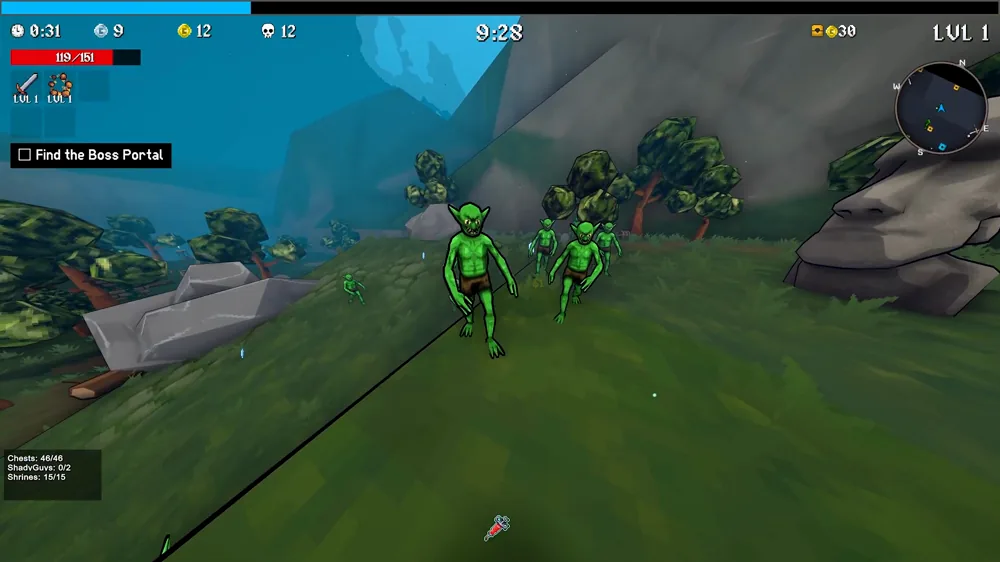
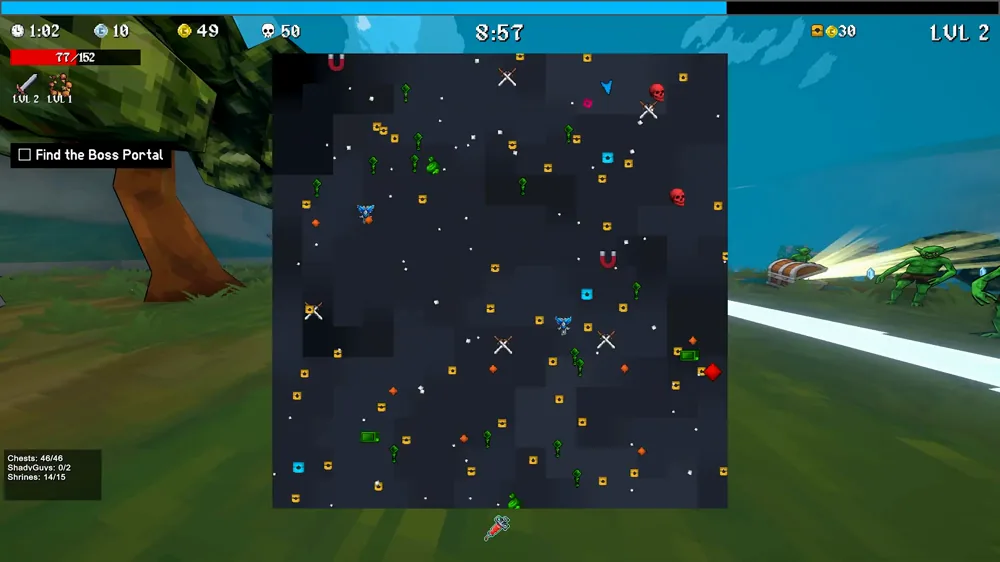
Better Minimap lets you resize and zoom out the minimap and open a full map of the level with chests and shrines marked. SpawnTracker adds a small counter in the bottom left corner showing how many chests, shrines and Shady Guys the map has and how many you have found.
Adds a window where you can search for any item and spawn it in any quantity (weapons and tomes are not included). It is the quickest way to test a build idea, and the clearest reason to keep leaderboard uploads off.
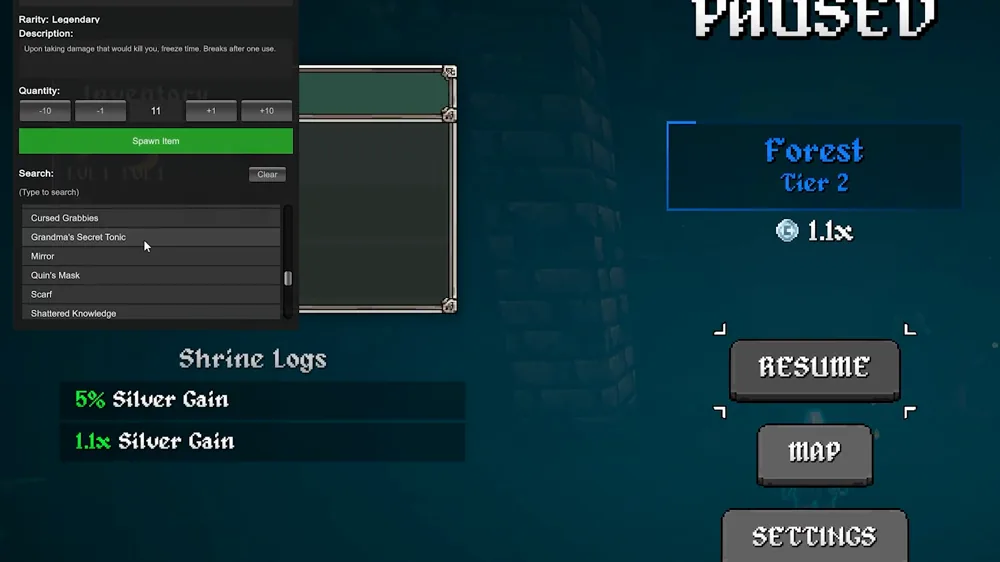
Shows the quest tracker and other unlock info on the pause screen, so you can see what you still need for the next character or item without leaving the run.
You can install mods without a manager, although updating them by hand takes more work:
To remove manually installed mods, delete their files from "BepInEx/plugins". To return to the normal game, delete the "BepInEx" and "dotnet" folders together with winhttp.dll, doorstop_config.ini and .doorstop_version. Steam's "Verify integrity of game files" does not remove these extra files, so delete them by hand.
Note: On Linux or Steam Deck, a manual BepInEx install also needs the launch option WINEDLLOVERRIDES="winhttp=n,b" %command% in Steam, otherwise Proton does not load it.