Oops! Something went wrong while submitting the form.


Install Raft mods with the free Raft Mod Loader: set up the launcher, install mods in one click from raftmodding.com and load them in game. Also covers the best mods, uninstalling and common errors.
Raft has a big, active modding scene built around one free tool, the Raft Mod Loader (RML). Mods add new storages, quality of life tweaks, cheats like an item spawner and whole new blocks, and most of them install with a single click.
The mod loader works with the Steam version of Raft on Windows. It was updated for the 1.1 update from March 10, 2026, which added crossplay, and many popular mods were fixed for it the same week.
Note: Make sure your friends install the mod loader and the same mods as you before you play together. Some mods work when only one player has them, but others can break the world or crash the game. Console players cannot install mods, so a modded world is for PC players only.
Go to the Raft Mod Loader page on raftmodding.com and click on the green "Download launcher" button. The current version is 2.8.10, from March 23, 2026.
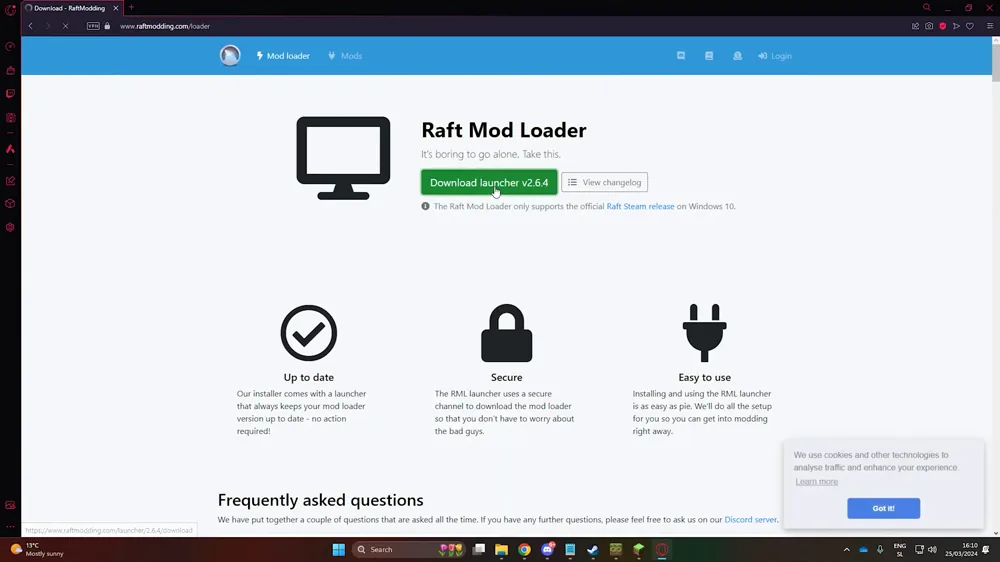
Save RMLLauncher.exe wherever you like, for example on your desktop. Run it and click on "Agree" to accept the terms of use.
The launcher downloads the mod loader by itself, and you can follow the progress under "Downloads". Once it says the mod loader is up to date, the green "Play" button starts Raft with mods.
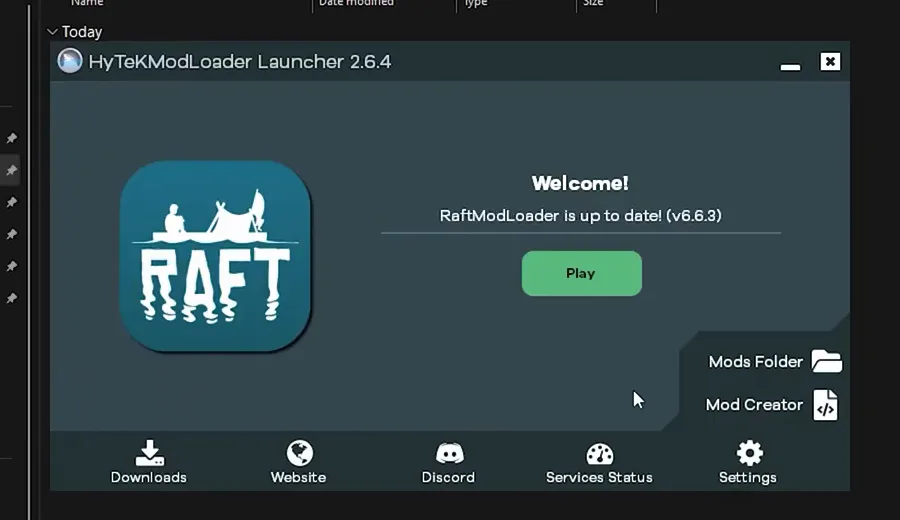
You don't need to update anything by hand later. The launcher checks for a new mod loader version every time you open it.
If the launcher cannot find Raft, or you installed the game on another drive, set the path yourself. Click on "Settings" and use the "..." button next to "Game Path" to pick your Raft folder.
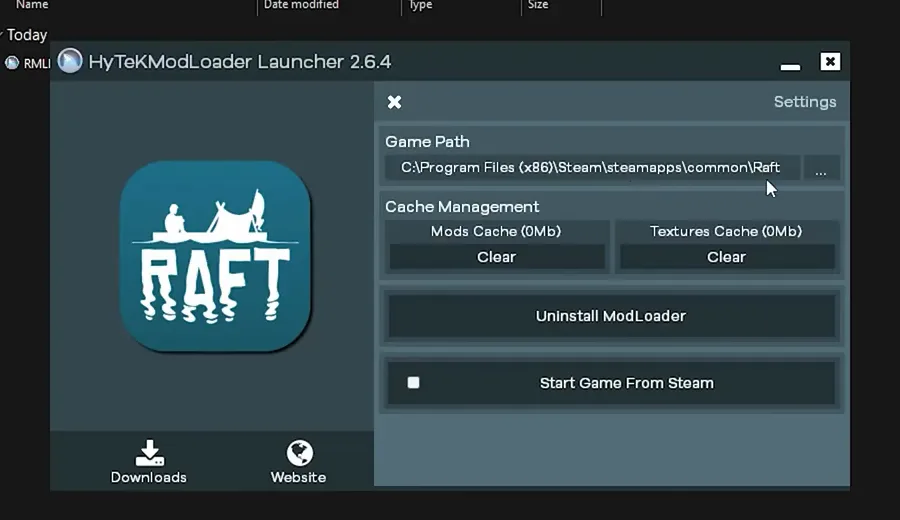
To find that folder, right-click on Raft in your Steam library, open "Properties", go to "Installed Files" and click on "Browse". The default location is Program Files (x86)\Steam\steamapps\common\Raft.
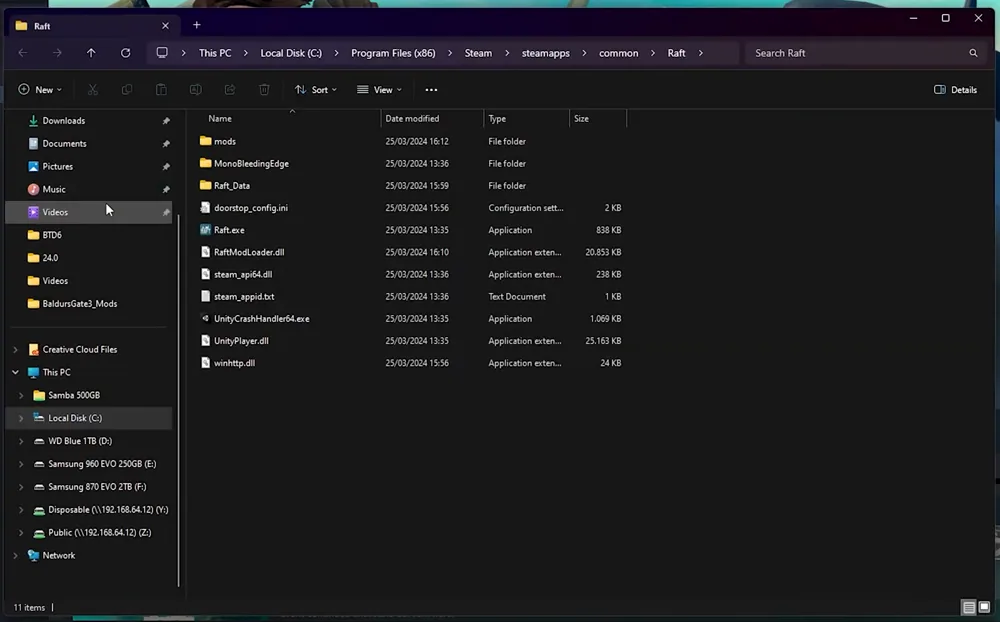
After the first launch, this folder also has a "mods" folder. That is where every installed mod is stored as a .rmod file.
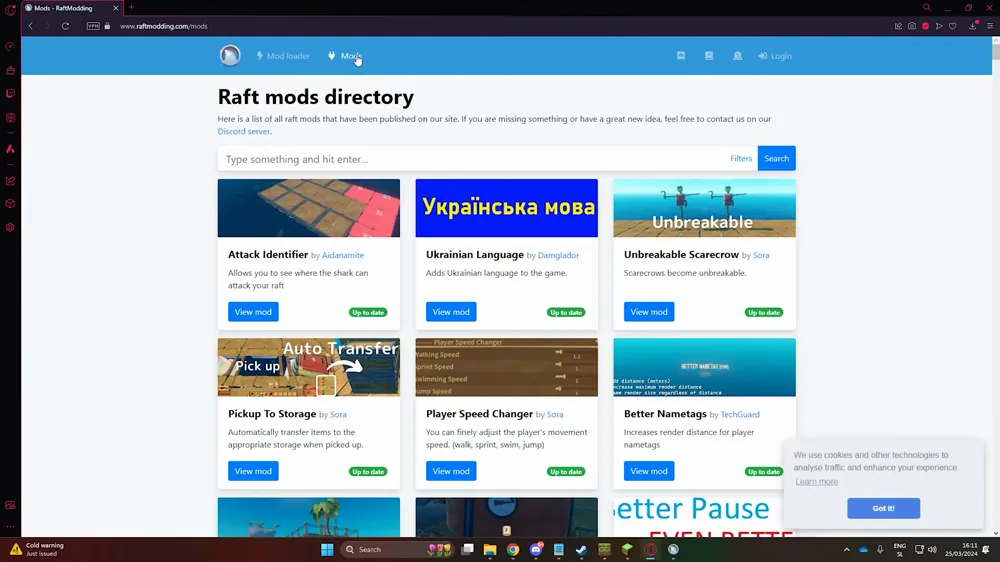
All mods live in the Raft mods directory. Each card shows whether the mod is up to date with the current game version, so check that label before you install something.
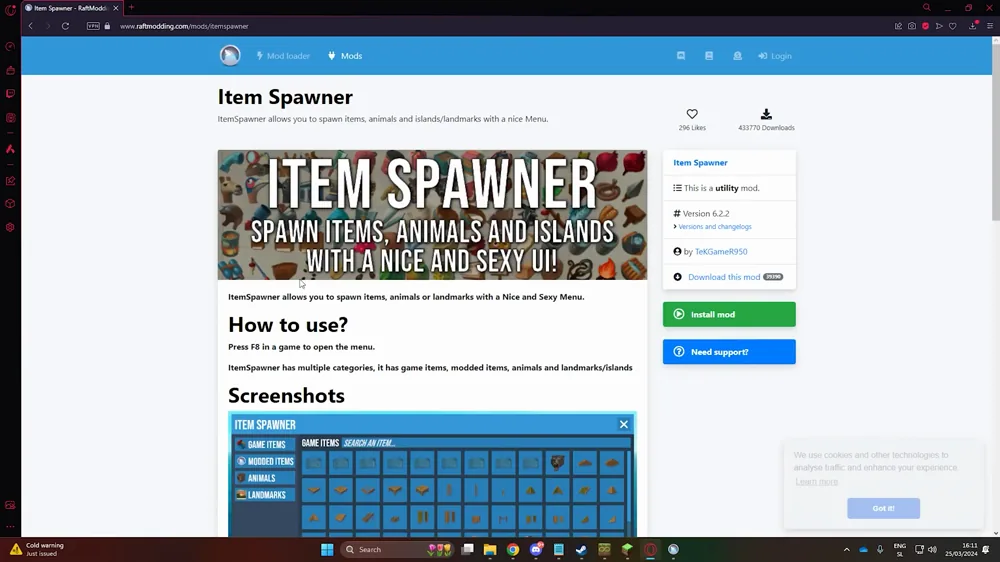
Open the mod's page and click on the green "Install mod" button. Item Spawner is a good first mod to test with.
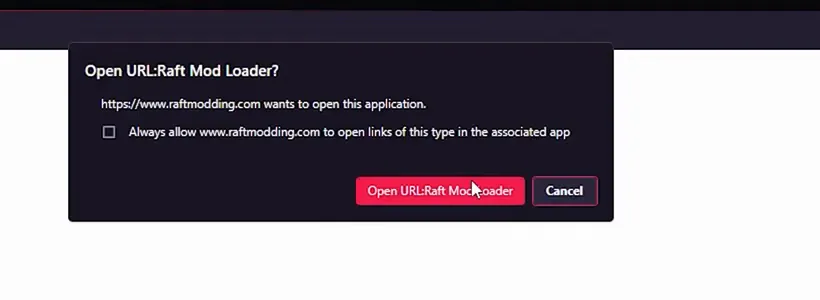
Your browser asks whether it may open the Raft Mod Loader. Click on "Open URL:Raft Mod Loader" (tick "Always allow" if you plan to install several mods).
The Raft Mod Installer window then opens. Confirm with "Yes, Install It" and wait for the message that the mod has been successfully installed.
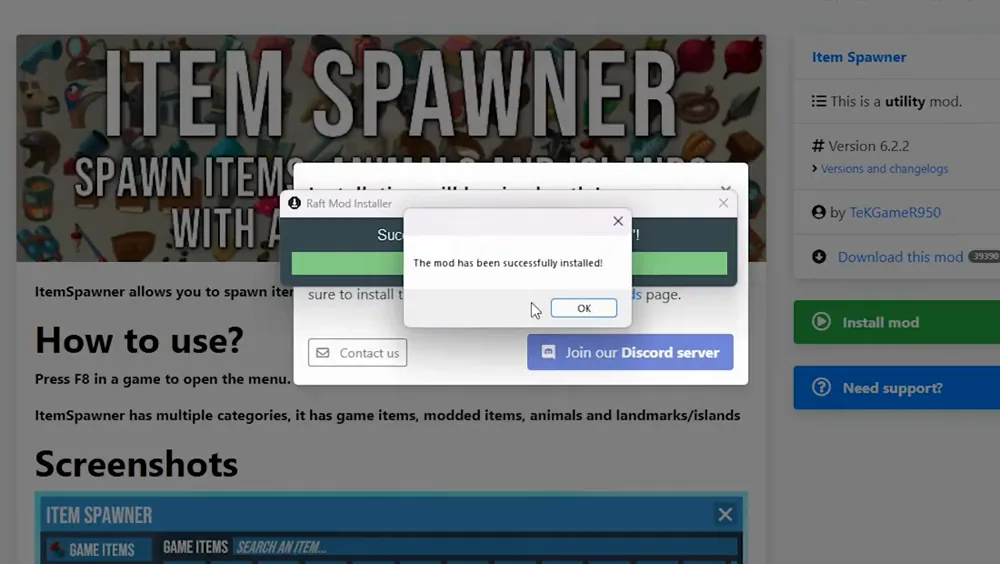
If the install prompt never opens, click on "Download this mod" on the mod page instead. Put the downloaded .rmod file into the "mods" folder inside your Raft game folder.
You can also open that folder straight from the launcher with the "Mods Folder" button.
Mods only load when you start the game with the "Play" button in the launcher. Starting Raft from Steam the normal way runs the unmodded game, which is the easy way to play without mods.
When the main menu loads, the Raft Mod Loader window opens over it. If you close it, press F9 to bring it back, and F10 opens the mod loader console.
Go to "Mod Manager" to see every installed mod. Mods marked with the infinity icon are permanent and load by themselves. For the rest, click on the load icon next to the mod or tick several and use "Load Selected Mods".
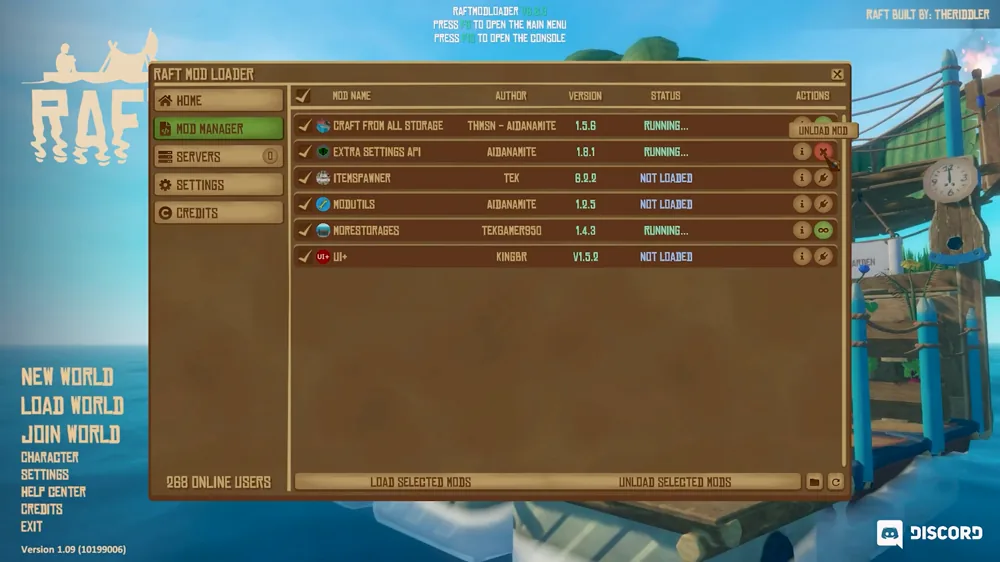
A mod that runs shows its status in green as "RUNNING...". It is best to load your mods in the main menu, before you open or join a world.
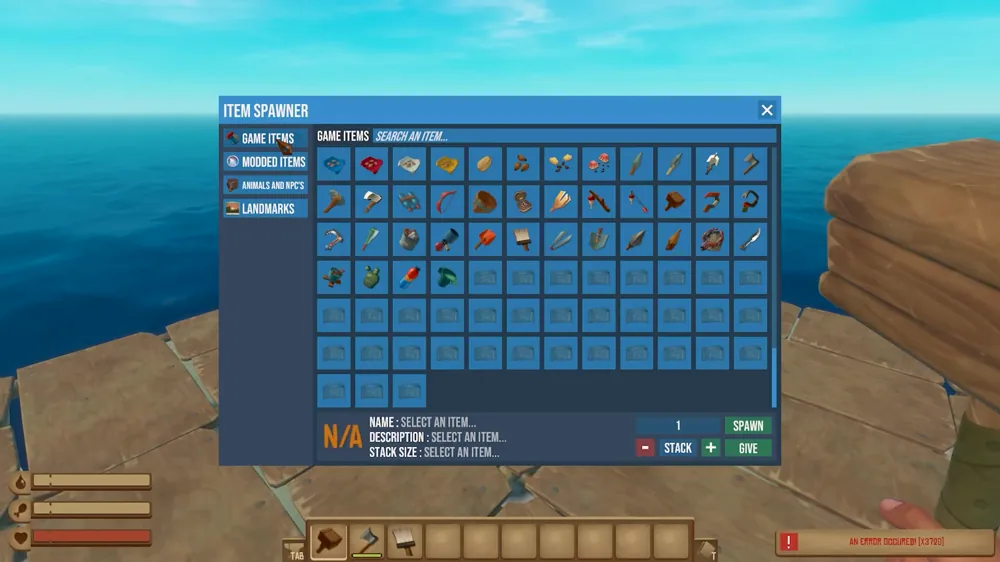
Load a world and press F8 to open the Item Spawner menu. You can spawn game items, modded items, animals and NPCs.
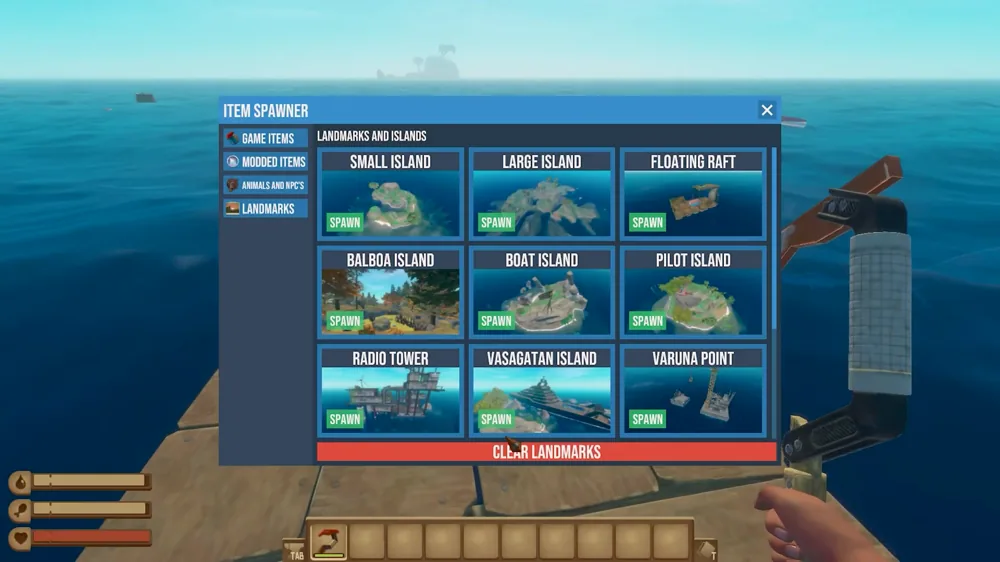
The "Landmarks" tab even spawns whole islands and story locations like Radio Tower, Vasagatan and Varuna Point next to your raft.
All of these were updated for the crossplay update and are marked up to date:
Item Spawner (version 6.2.4) opens with F8 and spawns items, animals and landmarks. The latest version also added quick buttons for max thirst, hunger and health, teleport to raft and day or night, plus a favorites list.
More Storages (version 1.4.4) adds more storage options, including bigger ones, balanced to fit the normal game. Every player on the server needs it.
Craft From All Storage (version 1.5.10) lets you craft with resources from any storage on your raft, not just your inventory. Press R while looking at a chest to include or exclude it.
UI+ (version 1.6.7) adds storage labels (press F1 to name a storage), shows how full tanks like the water and fuel tanks are and lists what grows in each crop plot.
Extra Settings API (version 1.11.2) does nothing on its own. It adds a "Mods" tab to the game's settings, where mods like UI+ let you change their options and keys.
Note: The video also installed ModUtils as a requirement. Since the crossplay update it is obsolete and will not be updated, so skip it unless a mod you want still lists it.
To remove a single mod, delete its .rmod file from the "mods" folder. To remove the mod loader itself, open the launcher, click on "Settings" and then on "Uninstall ModLoader".
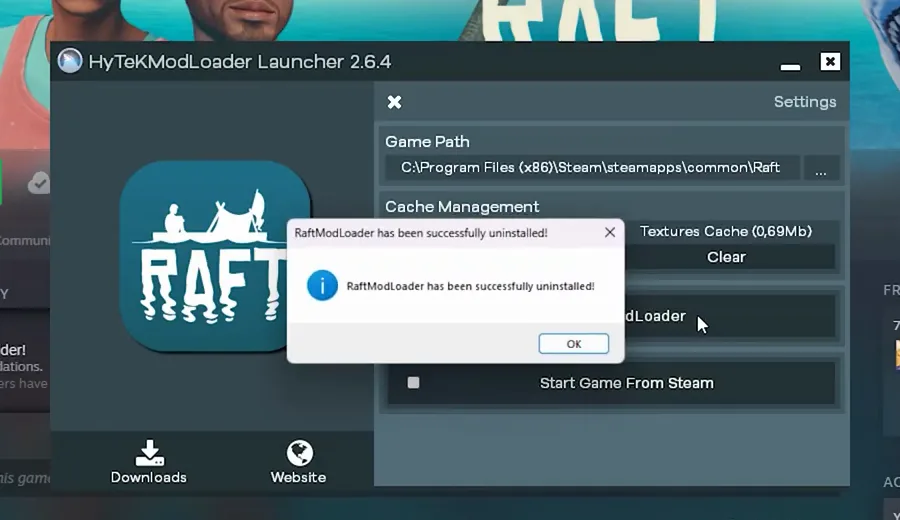
Your normal Steam launch of Raft stays untouched either way. Worlds that used content mods can show errors without those mods, so keep a copy of your save before you remove them.