Grand Theft Auto VI
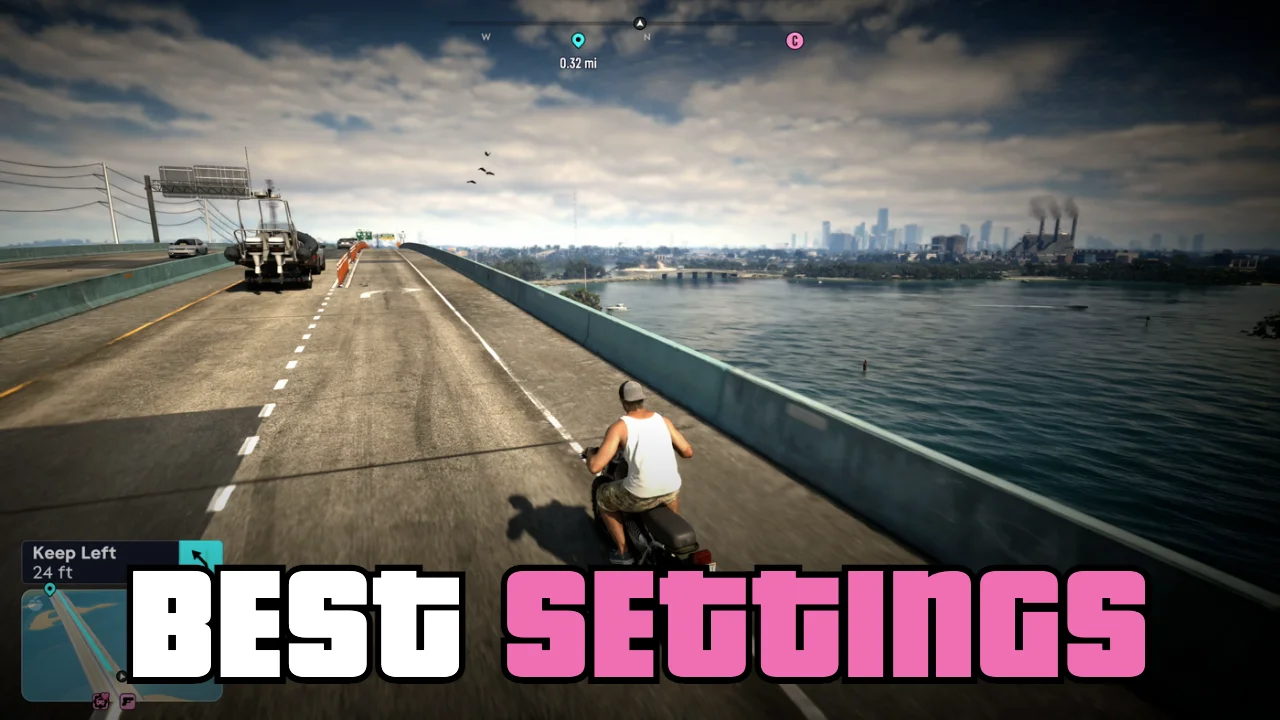
GTA 6 gameplay screenshot of Jason riding a motorbike over a causeway toward the Vice City skyline, with the bold title "Best Settings" in white and pink letters

Best Settings For PS5, PS5 Pro And Xbox

GTA 6 runs at 30 fps on every console, so the settings that matter are motion blur, HDR calibration, deadzones and camera shake. Here are the best settings for PS5, PS5 Pro and Xbox Series X|S.

Date created:
November 21, 2026
Last updated:
November 21, 2026 8:38 AM
GTA 6 gameplay screenshot of Jason riding a motorbike over a causeway toward the Vice City skyline, with the bold title "Best Settings" in white and pink letters

Best GTA 6 Settings At A Glance

GTA 6 has no graphics presets and no performance mode on any console. Every version targets 30 fps, so the settings worth changing are the ones that make the picture sharper and the controls feel more direct.

You find them in the pause menu under "Settings", split into the tabs Control Scheme, Controller, Gameplay, Display, UI, Camera and Audio. Switch tabs with L1 and R1 (LB and RB on Xbox).

Best GTA 6 settings
SettingTabDefaultBest Setting
Motion Blur StrengthDisplay30 (1 to 2 if 30 fps feels choppy)
Hit Effects IntensityDisplay53 to 4
Max BrightnessHDR Calibration600Your TV's peak brightness
Black LevelsHDR Calibration5050 (LCD), 20 to 40 (OLED, dark room)
Paper WhiteHDR Calibration5040 to 50
Deadzone (Left and Right Stick)Controller42 to 3
Adaptive Speed LimiterControllerOnOff
Movement SpeedGameplayWalkRun
Aim Assist StrengthGameplay44
Camera ShakeCameraOnOff
Camera BobCamera100
Cinematic Vehicle Crash FrequencyCamera30 to 1

Display And Visual Effects Settings

There is no separate graphics tab. The visual options sit in the Display tab under "Visual Effects".
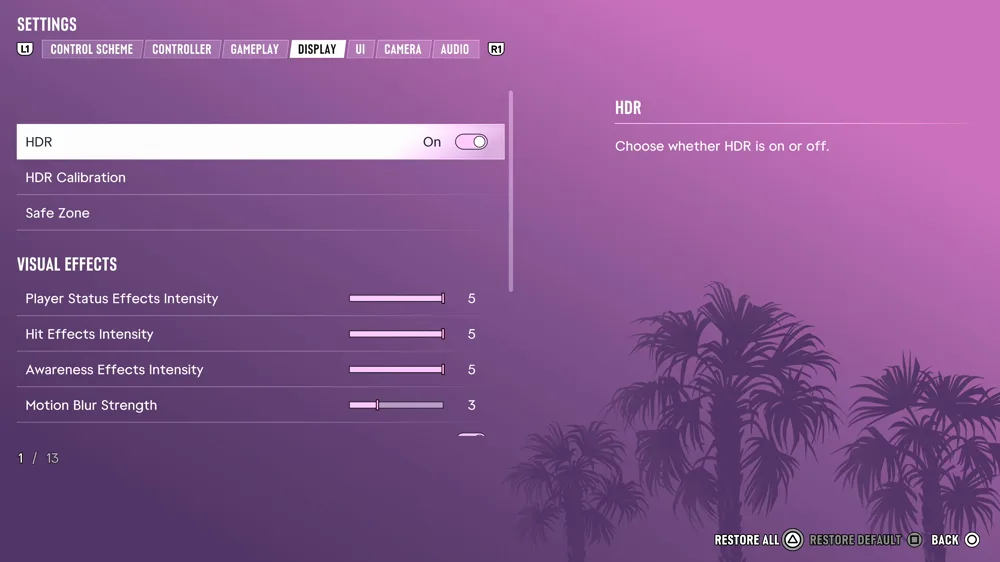
GTA 6 Display settings tab showing HDR, HDR Calibration, Safe Zone and the Visual Effects sliders
The Display Tab
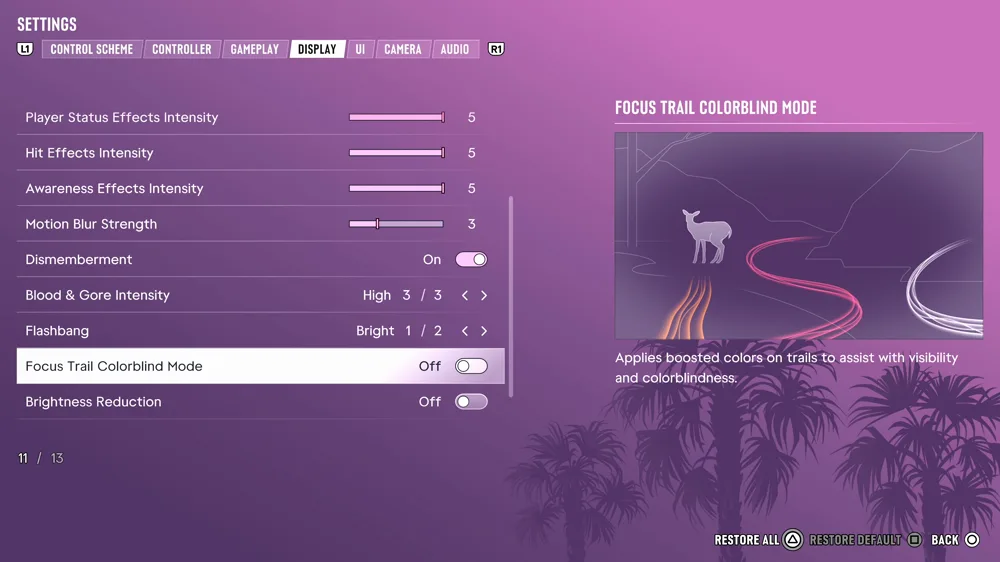
  • Motion Blur Strength: 3 by default. Set it to 0 for the sharpest image. If 30 fps feels choppy when you turn the camera, 1 or 2 smooths it out a little. It doesn't change the frame rate either way.
  • Player Status, Hit and Awareness Effects Intensity: all 5 by default. Drop Hit Effects to 3 or 4 if the screen flashes too much in gunfights.
  • Safe Zone: only change it if your TV cuts off the minimap or your money counter.
  • Flashbang: switch it to the darker option if bright flashes bother you.
GTA 6 Display settings with Motion Blur Strength at 3, Dismemberment, Blood and Gore, Flashbang and Focus Trail Colorblind Mode
Motion Blur Strength Defaults To 3

Note: GTA 6 has no depth of field, film grain, chromatic aberration or field of view setting. The dark band along the top of the screen can't be switched off either.

Best HDR Calibration Settings

Run your console's own HDR calibration first (PS5: Settings, Screen and Video, Video Output, Adjust HDR. Xbox: Calibrate HDR for Games). Set your TV to Game Mode with HGiG on if it has it, so the TV doesn't tone-map on top of the game.

Then open Display, "HDR Calibration". It has three sliders, defaulting to 600, 50 and 50:
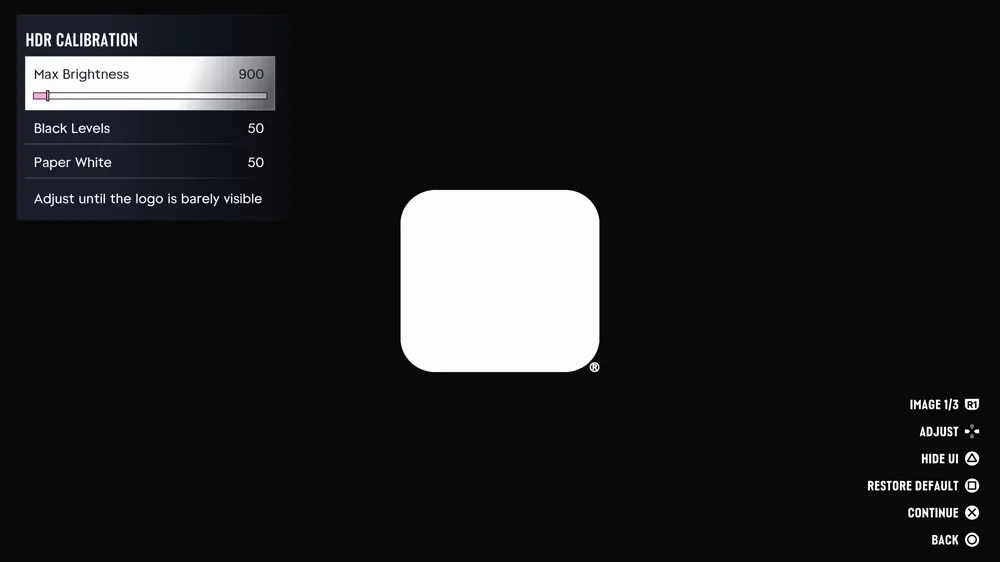
  • Max Brightness: set it to your TV's real peak brightness. On a bright TV of 1,000 nits or more, 1000 to 2000 works well.
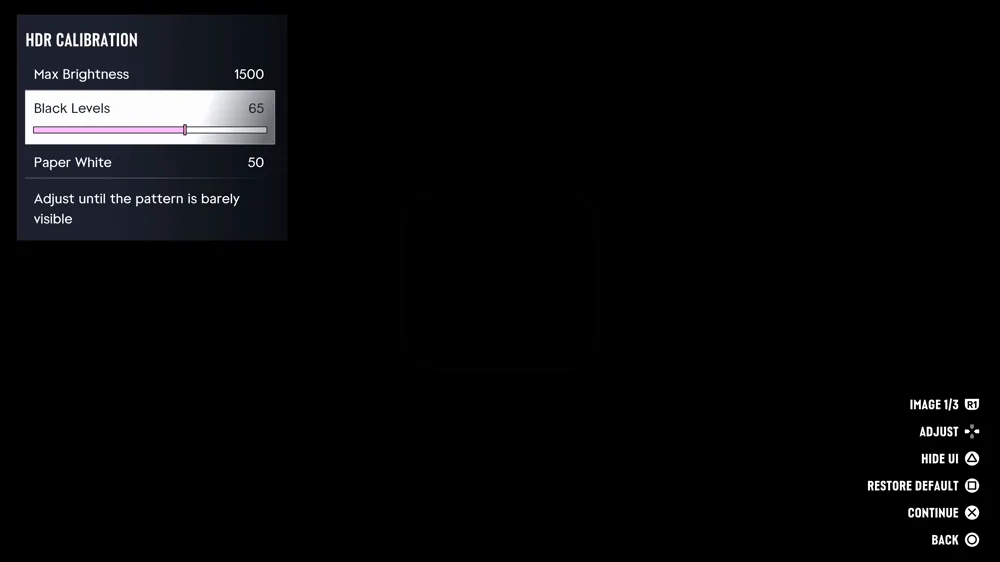
  • Black Levels: keep 50 on an LCD or in a bright room. Go lower, around 20 to 40, on an OLED in a dark room.
  • Paper White: 40 to 50 for a dark room. Below 50 it also lowers the peak brightness, so don't go too low.
GTA 6 HDR Calibration screen with the Max Brightness slider selected over a white logo on a black background
HDR Calibration: Max Brightness
GTA 6 HDR Calibration screen with the Black Levels slider selected and the hint to adjust until the pattern is barely visible
HDR Calibration: Black Levels

Best Controller Settings

The Controller tab has separate look and aim sensitivity sliders (7 by default) and the deadzones, which are the biggest upgrade for aiming.
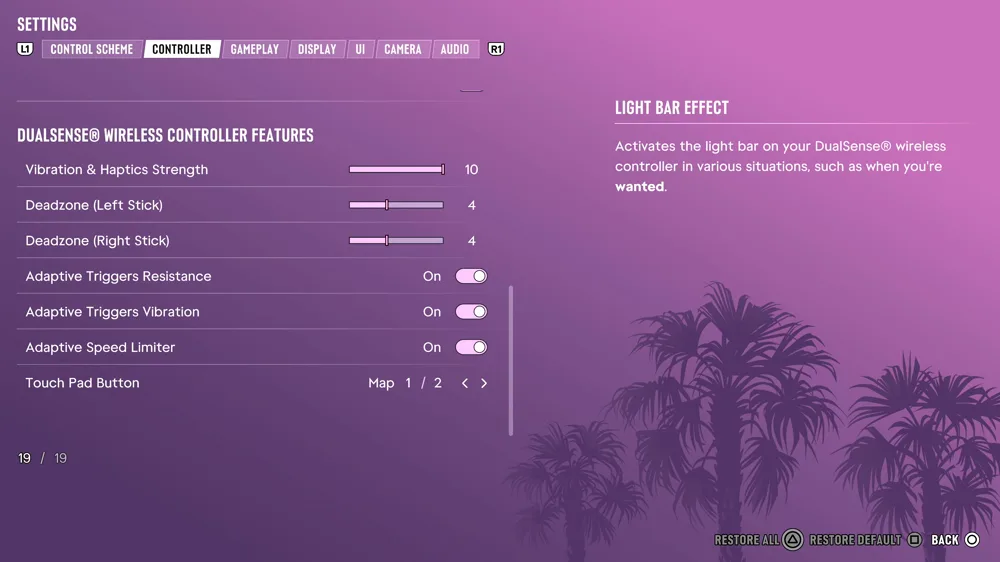
  • Deadzone (Left Stick) and Deadzone (Right Stick): 4 by default. Lower them to 2 or 3 for faster response. Never use 0, and raise it again one step at a time if the camera starts drifting.
  • Aim Sensitivity: keep it one step below Look Sensitivity so you don't overshoot targets.
  • Aim Response Curve: Standard is the default. Try Linear if you want direct, one-to-one aiming.
  • Adaptive Speed Limiter (PS5): turn it off for races. It adds resistance to R2 and fights you at full throttle.
GTA 6 Controller settings with Vibration and Haptics Strength 10, both deadzones at 4 and the adaptive trigger toggles
Deadzones And Adaptive Triggers

Best Gameplay And Camera Settings

In the Gameplay tab, change Movement Speed from Walk to Run, otherwise pushing the stick only makes your character walk. Targeting stays on Partial with Aim Assist Strength 4 for most players.
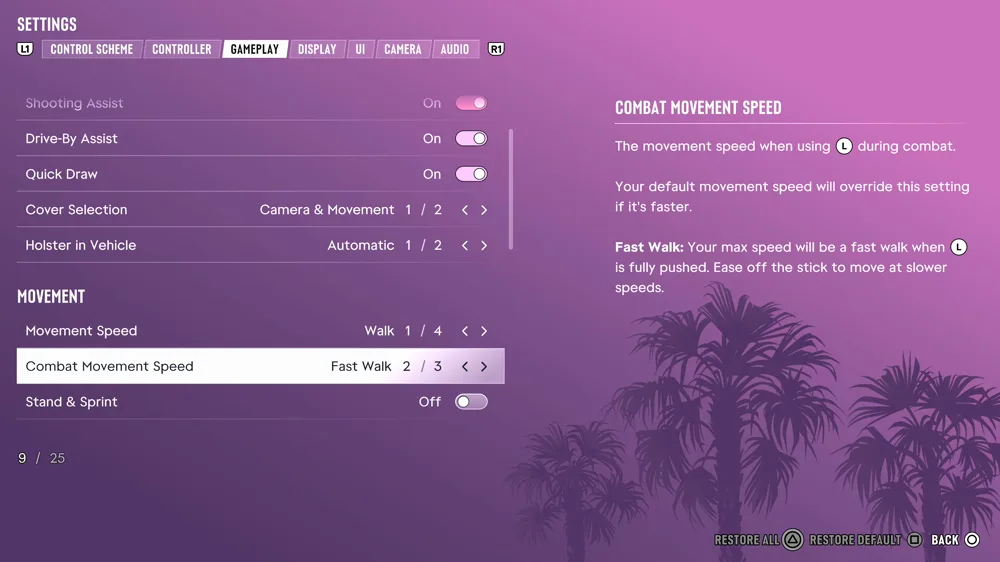
GTA 6 Gameplay settings with Movement Speed set to Walk, Combat Movement Speed Fast Walk and Stand and Sprint
Movement Speed In The Gameplay Tab

In the Camera tab, turn Camera Shake off and set Camera Bob to 0 for steadier aim and less motion sickness. Lower Cinematic Vehicle Crash Frequency to 0 or 1, so a crash camera doesn't cut in during a chase.

Best Audio Settings

The Audio tab is mostly personal taste. Two settings are worth checking:
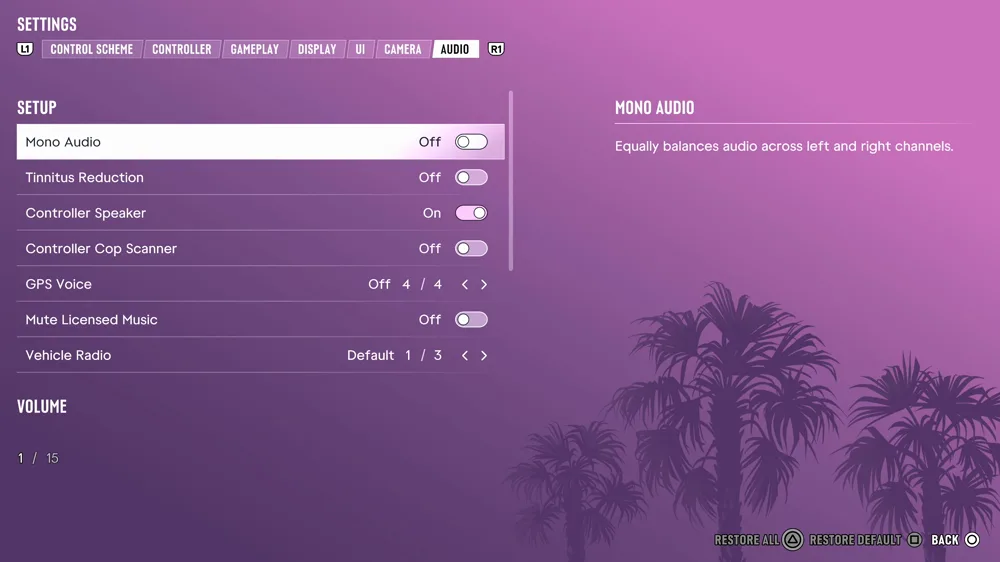
  • Controller Speaker (PS5): plays the phone, GPS and police radio through the controller. Turn it off if that gets annoying.
  • Mute Licensed Music: turn it on when you stream or record, although it doesn't guarantee you won't get a copyright claim.
GTA 6 Audio settings listing Mono Audio, Tinnitus Reduction, Controller Speaker, GPS Voice, Mute Licensed Music and Vehicle Radio
The Audio Setup Options

GTA 6 FPS And Resolution On Each Console

Rockstar built GTA 6 to run at 30 fps on PS5, PS5 Pro and Xbox Series X|S. There is no 40 fps, 60 fps or performance mode at launch.

  • PS5 Pro: around 1440p, upscaled with PSSR to near 4K, plus ray-traced shadows that only the Pro gets. Both switch on by themselves, so there is no Pro setting to look for.
  • PS5 and Xbox Series X: around 1440p, with dips into the 20s in the heaviest fights.
  • Xbox Series S: around 720p, upscaled to about 1080p.

A 120 Hz output on your console doesn't raise the frame rate. If the game crashes or won't start on PS5, check that the system software is up to date first.
0

Check out the YouTube video covering this guide

Grand Theft Auto VI playlist

Subscribe to our YouTube channel

Want to find even more of our content? By subscribing to our YouTube channel, you can make sure to get access to our newest guides.

SUBSCRIBE
info icon
URL copied to clipboard!